Documenting Intermittent IPTV Issues: A Methodical Home Desk Guide
26 October 2026 · 14 min read
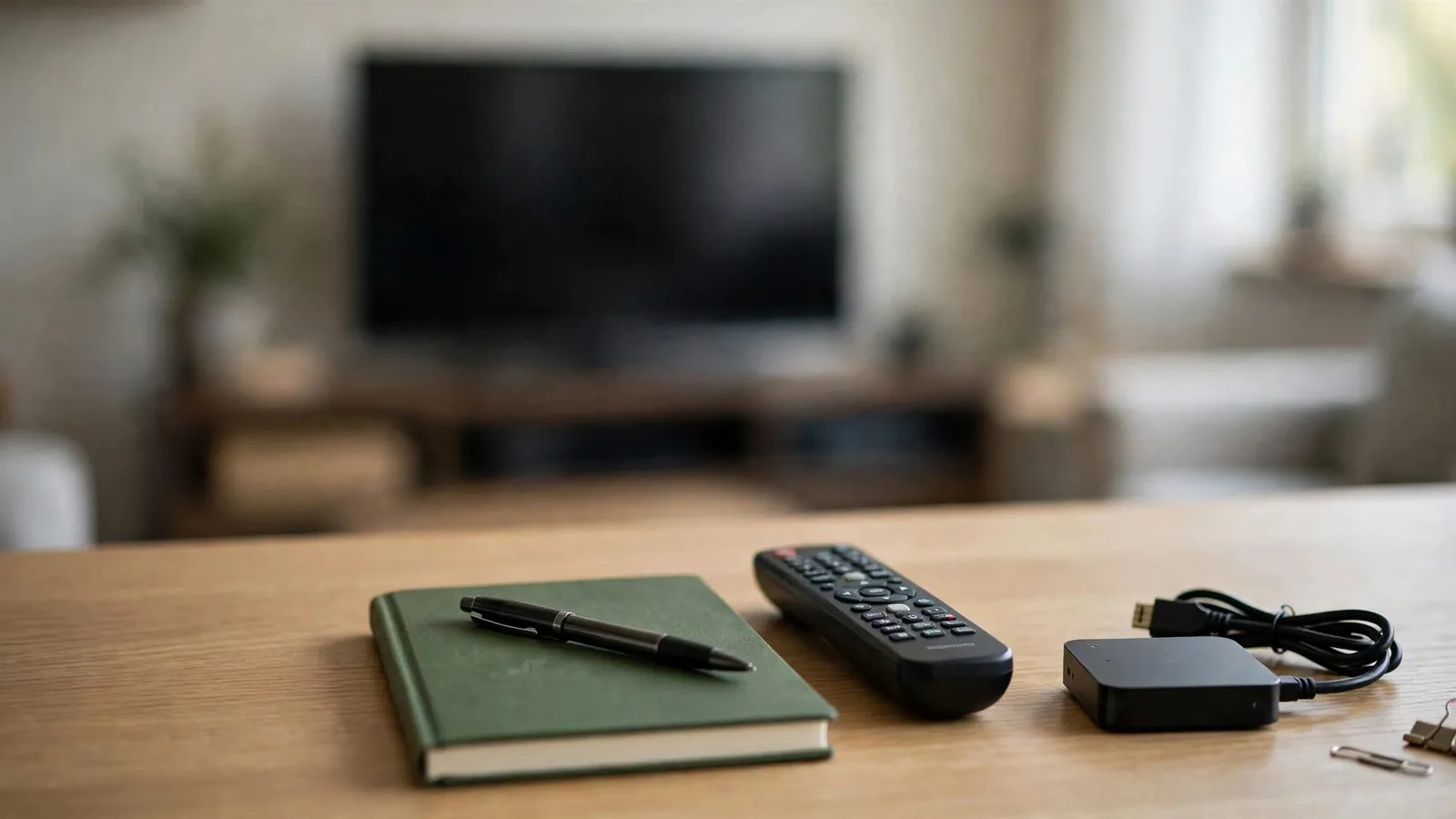
When streaming media stutters, pauses, or drops frames intermittently during a workday or evening downtime, the immediate impulse for most viewers is rapid intervention. Users often toggle settings, reinstall media players, cycle power, or adjust software options in quick succession. While this reactive approach feels productive, it frequently compounds the issue. Altering multiple variables simultaneously makes it impossible to identify which factor influenced playback behavior. Moreover, intermittent disruptions rarely respond cleanly to hasty adjustments.
Approaching intermittent streaming anomalies from a home desk requires shifting from reactive troubleshooting to structured observation. By establishing a methodical logging process, viewers create a clear, chronological record of playback events. This systematic documentation records objective symptoms, ambient desk conditions, software concurrency, and time-of-day patterns. Rather than guessing at root causes or destabilizing hardware with unnecessary resets, a disciplined log provides an accurate operational history.
The Trap of Premature Troubleshooting in Personal Workspaces
In a home office setting where a computer or secondary monitor handles multiple tasks, streaming irregularities often trigger immediate frustration. A momentary buffer or brief audio desynchronization leads people to alter video renderers, purge application caches, or reconfigure display drivers within seconds.
This habit creates two operational risks:
• The Confounding Variable Dilemma: When several settings are modified immediately after a brief freeze, and the stream subsequently runs smoothly, users credit the final change. In reality, intermittent issues often resolve independently due to transient external conditions. Introducing new settings based on coincidental timing can degrade future stability.
• Configuration Drift and Lost Baselines: Frequent, undocumented tweaks accumulate over time. Users forget their initial stable software defaults, window configurations, hardware acceleration options, and buffer sizes. When a persistent malfunction arises later, recovering a known-good baseline becomes difficult.
Replacing rapid interventions with a standardized note-taking routine preserves baseline stability and produces reliable data points instead of speculation.
Structuring a Reliable Observation Log Sheet
A functional observation log must be accessible from the desk without requiring complex tooling or disruptive multitasking. Whether kept in a dedicated notebook beside the keyboard or a plain-text file on a secondary virtual desktop, the log must prioritize objective consistency over elaborate formatting.
An effective desk log captures specific metadata for every observed irregularity:
• Exact Timestamp: Date, exact time, and observed duration of the playback event.
• Playback Context: The specific media player application, software version, and window mode (such as borderless window, full-screen, or picture-in-picture).
• Redacted Source Identifier: An anonymized label representing the channel or content category (such as News Feed 01). Raw playlist URLs, authentication tokens, usernames, and account credentials must never be transcribed into local log files.
• Symptom Manifestation: An unadorned, factual description of what occurred on the screen and audio output.
• Hardware and Ambient Status: Ambient room conditions, audible cooling fan activity, and known active background or foreground programs.
Maintaining this template ensures each entry represents a detached, standardized observation rather than an emotional reaction to an interruption.
Neutral Symptom Classification: Describing Without Diagnosing
A frequent mistake in documentation is describing issues using speculative technical conclusions rather than observable facts. Stating that a content server timed out or bandwidth was throttled is an unsupported assumption. The observer sees only what transpires on the monitor and through speakers.
To maintain clarity, adopt neutral, descriptive terminology:
• Micro-Stutters: Playback remains continuous, but rapid visual motion appears juddery or uneven, while audio remains uninterrupted.
• Audio and Video Sync Drift: Audio precedes or lags behind video rendering progressively over time or abruptly following a momentary hitch.
• Hard Visual Freeze with Sustained Audio: The visual frame locks into a static image, yet audio delivery continues without interruption.
• Synchronous Playback Freeze: Both visual and audio components stop simultaneously, accompanied by a static frame or loading indicator.
• Player Crash or Unresponsiveness: The media player terminates abruptly (a crash) or freezes and stops responding to input commands while remaining open (an unresponsive state).
• Rapid Looping: A short segment of audiovisual content repeats in an identical cycle multiple times before halting or resuming.
Cataloging symptoms neutrally keeps personal records objective and directly comparable across different observation days.
Evaluating Desk Environment: Thermals, Ventilation, and Cables
Personal streaming setups in a home office are often subjected to physical constraints that impact device behavior. Before assuming an issue originates externally, the physical environment of the desk must be documented alongside playback timelines.
Consider the following physical workspace variables:
• Device Placement and Airflow: Streaming hardware, compact desktop units, and media boxes generate heat during continuous video decoding. A device placed behind a monitor, inside a drawer, or stacked directly atop other electronics may accumulate heat. Perform a non-contact check by observing ventilation clearances and listening for elevated cooling fan noise. If unusual heat buildup or an acrid odor is suspected, stop operation and power down following the manufacturer's safe shutdown instructions rather than touching hot surfaces or continuing testing.
• Physical Cable Seating: Video and peripheral cables can experience signal degradation if subjected to physical strain, sharp bends, or loose seating in port sockets. Visually inspect accessible cable runs for acute bends, snag points, or mechanical tension when adjusting a monitor arm. Keep workspace observation strictly visual and non-contact during playback; any physical reseating of display or peripheral cables should only follow model-specific safe shutdown and connection instructions, without manipulating live power connectors or hot enclosures.
• Power Delivery Consistency: Workstations and media devices should receive steady power; high-draw appliances like space heaters should never share a power strip with computing or streaming hardware per manufacturer safety warnings. Note passively if a playback hiccup coincides with the scheduled activation of other household equipment on the broader circuit, without activating heavy loads to test.
Tracking Workstation Concurrency and Resource Allocation
When a home office computer doubles as a media playback terminal, local system resources are shared dynamically among running applications. Documenting observable local workload at the moment of an interruption provides practical operational context, though resource logs alone do not definitively prove or rule out underlying system bottlenecks.
Key concurrent factors to log include:
• Active Foreground Processes: Note whether resource-intensive software—such as video rendering, spreadsheet recalculation, file compilation, or large cloud syncs—was actively running when the stream hesitated.
• Browser Tab Overhead: Modern web browsers consume significant memory and background processing capacity. Document the presence of numerous open tabs or heavy web applications running concurrently.
• Hardware Acceleration State: Whether hardware-accelerated decoding is enabled within the playback software is a relevant baseline state. Document whether it is active, but avoid toggling it mid-event without recording the baseline first.
• Display Configuration: Note whether playback occurs on a primary display, secondary monitor, or virtual desktop, noting display resolution and refresh rate configurations.
Mapping Temporal Patterns and Daily Usage Fluctuations
Intermittent anomalies often correlate with specific times of the day, reflecting broad shifts in household activity or wider infrastructure demands. An issue that appears random in isolation may reveal clear periodicity when plotted against a 24-hour log.
Documenting temporal aspects involves recording:
• Time-of-Day Windows: Group events into consistent operational periods: early morning (06:00 to 09:00), midday working hours (09:00 to 17:00), peak domestic evening hours (18:00 to 22:00), and late night (after 22:00).
• Day-of-Week Variation: Contrast weekday observations with weekend patterns, as residential occupancy and usage habits shift.
• Household Concurrency: Note whether other individuals in the household were active on shared local hardware or streaming media concurrently, without altering local network settings.
• Event Cadence: Record whether an event is an isolated one-off occurrence or exhibits rhythmic recurrence (such as recurring every twenty minutes). A regular cadence highlights a recurring time pattern worth noting, although a home desk log cannot definitively pinpoint scheduled background processes or network timers on its own.
Cross-Referencing Playback Across Secondary Local Displays
A disciplined documentation workflow benefits from observing how different display outputs or local media software handle playback, without altering account parameters or reconfiguring home networks.
When recording comparative observations:
• Secondary Display Validation: On a multi-monitor workstation, drag the media window from a high-refresh primary monitor to a secondary standard office display. Note whether frame pacing improves or remains unchanged.
• Alternate Local Player Comparison: On supported and authorized devices, test a comparable non-sensitive test stream in a secondary standard player without exceeding allowed account concurrency. Note any changed variables—such as distinct decoding engines or default buffer profiles—and avoid drawing firm conclusions if comparing mismatched media formats.
• Redaction Discipline: When transferring observation tasks across devices or players, ensure that credentials, unique authentication paths, or custom playlist links remain strictly protected. Never paste sensitive account tokens into shared clipboards or unencrypted notes.
Practical Checklist for Documenting Intermittent Events
Keep this practical checklist pinned near your desk or open in a text editor to guide your response during a playback interruption:
• Step 1: Pause Intervention: Resist the urge to reboot hardware, toggle connection switches, or adjust media buffer sizes immediately.
• Step 2: Note the Exact Timestamp: Record the hour, minute, and approximate duration of the disruption.
• Step 3: Define the Symptom Factually: Write down the sensory observation (such as visual freeze with continuing audio or brief audio stutter) without guessing causes.
• Step 4: Check Thermals and Hardware State: Observe ventilation clearance visually, listen for atypical fan noise, and check system performance utilities for processor activity; if unusual heat buildup is suspected, safely power down according to the manual instead of touching hot enclosures.
• Step 5: Document Concurrent Applications: List open foreground programs, background file transfers, or heavy browser sessions running concurrently.
• Step 6: Confirm Physical Cable Seating: Visually inspect cables for mechanical strain or severe bends; keep observation strictly non-contact during playback, and perform physical adjustments only following model-specific safe shutdown instructions without manipulating live power connectors or hot enclosures.
• Step 7: Mask and Sanitize Data: Verify that any log entry or visual note completely obscures usernames, passwords, account identifiers, server addresses, and token strings.
• Step 8: Resume Normal Viewing: Allow playback to continue without configuration changes to see if the issue repeats within a specific time window.
Qualitative Comparison: Reactive Tinkering vs. Structured Observation
Dimension: Initial Reaction · Impulsive Troubleshooting: Rapid toggling of software configurations, player reinstalls, and hardware power cycles. · Systematic Personal Documentation: Methodical timestamp recording and passive observation of duration and behavior.
Dimension: System Stability · Impulsive Troubleshooting: High risk of configuration drift, corrupted user profiles, and lost functional defaults. · Systematic Personal Documentation: Preserves known-good operational baselines and settings integrity across sessions.
Dimension: Causal Understanding · Impulsive Troubleshooting: Assumes speculative causes based on coincidental timing. · Systematic Personal Documentation: Highlights observable temporal, thermal, or concurrency correlations across logged sessions.
Dimension: Effort Investment · Impulsive Troubleshooting: High cognitive fatigue, repeated disruptions, and constant trial-and-error frustration. · Systematic Personal Documentation: Low-friction note taking (an illustrative estimate of 15 to 30 seconds per event) that avoids disruptive multitasking.
Dimension: Data Privacy · Impulsive Troubleshooting: Frequent hasty screenshots risking accidental exposure of credentials or account tokens. · Systematic Personal Documentation: Reduces credential exposure risk through disciplined redaction, though manual notes require ongoing privacy care.
Dimension: Actionable Outcome · Impulsive Troubleshooting: Confusion regarding which change had an effect; recurring issues remain unexplained. · Systematic Personal Documentation: Structured operational log that provides clear, factual patterns for informed decisions.
Hypothetical Documentation Scenarios (Redacted Records)
The following two examples illustrate how an organized home office user logs intermittent anomalies factually while keeping all sensitive credentials, URLs, and tokens fully protected. Both examples are strictly hypothetical scenarios.
Hypothetical Scenario A: The Evening Desk Buffer
*Context*: An individual is working late at a desk, running a personal desktop setup with two monitors. Media playback is active on the vertical secondary display while office productivity software is active on the primary display.
*Hypothetical Log Record*:
• Date: 2026-10-27
• Time: 20:14:22 UTC-4 (Local Evening)
• Duration: Approximately 8 seconds
• Symptom: Visual stutter followed by 4 seconds of buffering spinner; audio halted simultaneously.
• Media Source Label: [REDACTED_CHANNEL_NEWS_01]
• Application: Desktop Media Client v3.4 (Standard 64-bit build)
• Window Mode: Pinned Secondary Display (1080p @ 60Hz)
• Hardware State: Device positioned with open ventilation clearance; cooling fan operating at moderate acoustic speed.
• Concurrent Tasks: 14 browser tabs open; 1 large local PDF rendering in background.
• Physical Check: Visual inspection confirmed DisplayPort cable was free of mechanical tension; surge protector operating normally without shared high-draw appliances.
• Action Taken: None. Allowed stream to resume automatically at 20:14:30 UTC-4. Baseline maintained.
Hypothetical Scenario B: Progressive Audio Drift During Daytime Task
*Context*: A user running a compact media box attached to an auxiliary desk monitor observes sound falling behind lip movement during an early afternoon session.
*Hypothetical Log Record*:
• Date: 2026-10-28
• Time: 13:45:00 UTC
• Duration: Continuous, noticed over a 25-minute period
• Symptom: Audio-video desynchronization; audio lagging behind visual motion by roughly 500ms. No dropped frames or buffering wheels observed.
• Media Source Label: [REDACTED_STREAM_DOCS_B]
• Application: Standalone Streaming Terminal OS (Firmware v2.1.0)
• Window Mode: Full-screen auxiliary monitor (HDMI 2.0 connection)
• Hardware State: Ambient room temperature approximately 21°C; enclosure vents visually clear and unobstructed.
• Concurrent Tasks: No user-initiated foreground applications active (dedicated terminal; background operating system services unmonitored).
• Comparative Check: Tested an authorized, locally hosted reference video file using the same media player; audio-video sync remained aligned. Reconnected to [REDACTED_STREAM_DOCS_B]; sync drift persisted, noting codec differences as an unverified variable.
• Action Taken: Documented entry in desk binder. Did not reflash firmware or alter audio latency offsets.
Building Sustainable Observation Habits
Managing intermittent streaming disruptions from a home office desk requires patience and procedural discipline. When playback hitches occur, treating the event as an observational data point rather than an immediate technical crisis protects system stability and reduces frustration. By methodically logging exact times, neutral symptoms, ambient desk conditions, and concurrent computer workloads, users establish a factual record that cuts through speculation.
A disciplined observation log helps prevent the cycle of impulsive reboots, uncoordinated setting tweaks, and lost configurations. Before altering another display parameter or reaching for a power cord, pick up a pen or open a clean document. Document what is actually happening, maintain your operational baseline, and allow patterns to reveal themselves through evidence.
Ready to buy an IPTV code?
Frequently asked questions
Why should I avoid restarting hardware immediately when a stream buffers?
Restarting hardware immediately clears transient memory states, closes background processes, and interrupts active sessions all at once. While it may temporarily restore playback, it prevents you from determining whether the issue was an isolated momentary anomaly, a software memory leak, thermal throttling, or a recurring environmental pattern. Logging first preserves operational data.
How many observation entries are necessary before noticing meaningful patterns?
There is no rigid quota of logged events required before evaluating an issue. While recording several occurrences across different times can help highlight potential temporal patterns, severe disruptions, persistent error codes, or physical safety concerns (such as burning smells or unusual hardware heat) warrant immediate attention or manufacturer support without waiting for multiple observation sessions.
What information should never be written into an observation notebook or text log?
Never transcribe complete playlist URLs, stream authentication tokens, account usernames, passwords, device serial numbers, or public IP addresses. An observation log requires only descriptive labels (such as Channel A or Station 04) and objective symptoms to remain useful. Keeping sensitive identifiers out of desk logs significantly reduces the risk of accidental credential exposure, though physical and digital notes should still be handled securely.
Does recording ambient desk factors really make a difference for streaming media?
Yes. Modern media streaming hardware relies on continuous hardware decoding, which generates heat. Compact media players or desktop graphics hardware operating in unventilated desk cubbies or behind warm display panels can downclock when thermal thresholds are exceeded, manifesting as dropped frames or micro-stutters. Documenting ambient workspace conditions and fan behavior helps identify potential physical constraints, although software logging alone cannot confirm internal thermal throttling thresholds without dedicated diagnostic sensor tools.
When is it appropriate to take technical action after maintaining a log?
When tracking mild, intermittent anomalies, isolating changes one at a time against a logged baseline helps determine their actual impact. However, if a complete service outage occurs, playback errors persist continuously, or hardware safety is in question, immediate troubleshooting or reaching out to support is appropriate without waiting to gather multiple observation sessions.
Read next: the IPTV code prices or the redeem-your-code tutorial.