IBO Player Pro: Native Smart TV IPTV Setup Guide 2026
5 September 2026 · 9 min read
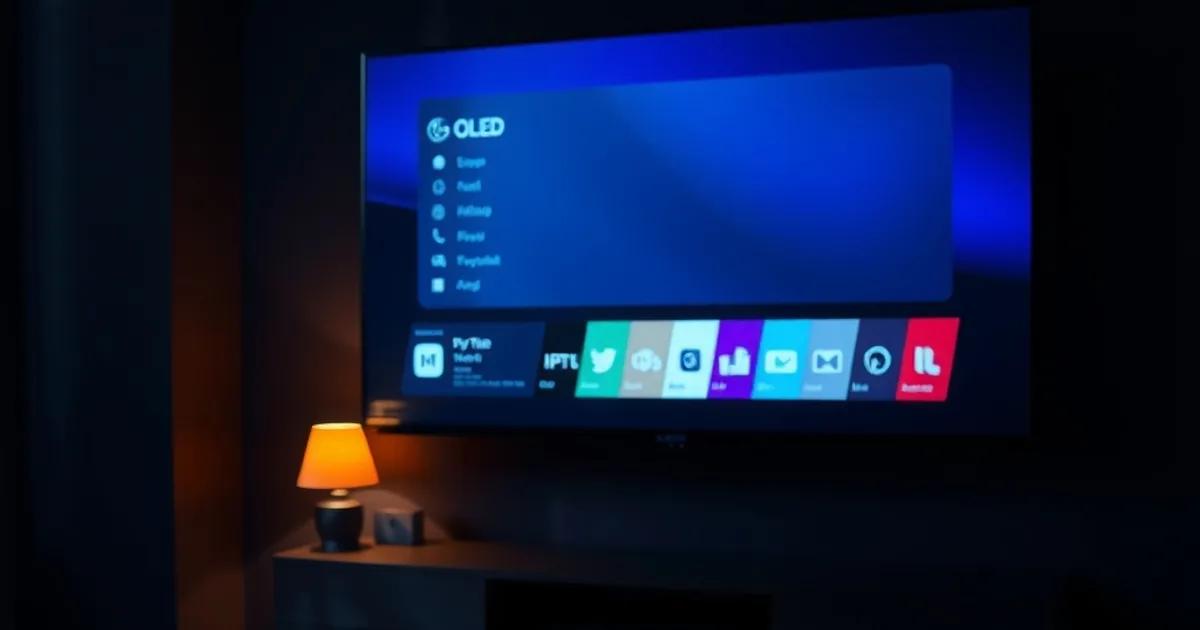
For years, the standard advice for watching IPTV on a Smart TV has been to buy a Firestick or Android TV box and sideload an app like TiviMate. That advice is now outdated for a large share of TV owners. IBO Player Pro is published directly on the Samsung App Store (Tizen) and the LG Content Store (webOS), which means anyone with a Samsung or LG Smart TV from the last several years can install it the same way they'd install Netflix — no USB drive, no developer mode, no separate streaming device.
The September 2026 sports calendar is accelerating this shift. New-season football and other live sports are pushing viewers toward premium 4K displays, and LG OLED panels — which hold roughly 52% of the premium OLED market — are a huge share of the TVs this now applies to. IBO Player Pro's native app has matured over the past year: stable 4K playback, a clean grid-based interface, and lifetime licensing typically in the €5–€10 range put it in direct competition with the Firestick + TiviMate combo, minus the extra hardware and setup friction.
This guide covers why native deployment now genuinely competes with external-box setups, how to install IBO Player Pro on Samsung and LG TVs step by step, what it does well versus alternatives, and — just as important — when an external box is still the better call.
Why IBO Player Pro Is the Native Smart TV IPTV Leader in 2026
Most IPTV app comparisons online — including popular TiviMate vs IPTV Smarters Pro writeups — are written from the assumption that you're using a Firestick or Android TV box. That assumption made sense when native Smart TV app stores had thin, unreliable IPTV offerings. It no longer fully holds. If you're weighing your options at the app level first, our guide on choosing your IPTV app (/blog/choosing-your-iptv-app-tivimate-vs-iptv-smarters-pro-comparison-2026) is still useful background, but it doesn't cover the native Tizen/webOS path in depth — which is the gap this article fills.
IBO Player Pro's advantage is straightforward: it's built specifically for Smart TV operating systems rather than ported over from Android. That means the interface, remote-control navigation, and playback engine are tuned for the TV's own hardware decoder instead of running through an emulation or compatibility layer. The result is generally lower overhead and fewer of the stutter issues that plague poorly optimized sideloaded apps.
It also means updates come through the manufacturer's app store rather than manual APK installs, so the app stays current without you having to intervene. For non-technical users — or anyone who just wants to turn on the TV and watch — that maintenance-free model is a meaningful, underappreciated win.
Not sure if your Samsung or LG TV supports native setup? Ask us directly.
Samsung Tizen vs LG webOS: How to Install (No Sideloading Required)
Samsung's Tizen OS and LG's webOS are the two dominant Smart TV platforms, and IBO Player Pro is published natively on both official stores. This is the core distinction from the sideloading approach covered in most device-by-device setup guides: there's no unknown-sources toggle, no file manager app, no USB stick involved.
On Tizen, the app is listed under its own name in the Samsung App Store search, downloadable and installed like any other app, with automatic updates handled by Samsung's own update cycle. On webOS, the LG Content Store process is nearly identical — search, install, launch.
The practical difference between the two platforms is less about the install process and more about remote control ergonomics and app-switching speed, both of which favor whichever TV generation is more recent. If you're setting up multiple device types across a household, our broader device-by-device setup guide (/blog/device-by-device-setup-fire-stick-android-tv-smart-tv-iphone-android-2026) is worth cross-referencing for phones and tablets, since IBO Player Pro's native advantage is specific to Tizen and webOS — it doesn't extend to iOS or Android in the same way.
IBO Player Pro vs TiviMate: Native App vs Firestick Performance
TiviMate remains an excellent app, and on an Android TV box or Firestick it's still a top-tier choice — its EPG layout and multi-screen features are more mature than most native alternatives. But that comparison only matters if you already own or are willing to buy the external hardware.
The fairer comparison for a Samsung or LG TV owner is: native IBO Player Pro versus TiviMate-on-a-Firestick, hardware cost included. A Firestick or Android TV box adds an extra remote, an extra HDMI port in use, an extra device to power and occasionally reboot, and a second point of failure. Native IBO Player Pro removes all of that — you're using the TV's own remote and the TV's own processor.
Where TiviMate still wins is raw feature depth for power users: multi-EPG merging, more granular playlist management, and a more customizable channel grid. IBO Player Pro's native app is more streamlined by design — fewer settings to fiddle with, which is exactly the point for most households. If buffering has been your main frustration on either setup, the fixes are largely platform-independent — see our diagnosis guide (/blog/iptv-buffering-fix-diagnose-resolve-2026) before assuming the app itself is at fault.
Core Features: EPG, 4K, Catch-Up TV, VOD, and Playlist Support
IBO Player Pro supports the standard Electronic Program Guide (EPG) format, showing what's airing now and next per channel, which is essential for live sports scheduling. It accepts standard M3U playlist formats and Xtream Codes API connections, the two most common ways IPTV providers deliver channel lists, so it's compatible with the same subscription format most services already use.
4K playback is handled through the TV's native hardware decoder rather than software decoding, which is precisely why performance on a modern Samsung or LG panel can match or beat a mid-range Firestick — the TV's own chipset is often more capable than the streaming stick's.
Catch-up TV — the ability to rewind and watch a program that already aired, for channels that support it — is built in, along with a VOD (video-on-demand) section for on-demand movie and series libraries where your provider offers one. None of these features require a separate app or plugin; they're part of the same interface.
Step-by-Step Setup for Samsung Smart TVs (2018+)
1. On your Samsung remote, press the Home button, then navigate to the Apps section. 2. Use the search function (usually a magnifying glass icon) and type 'IBO Player Pro'. 3. Select the app from the results and choose Install — Samsung will download it like any other app. 4. Once installed, open it from your Apps row or the Home screen.
5. On first launch, you'll be prompted to add a playlist — this is where you enter the connection details your IPTV provider gives you, typically either an M3U URL or Xtream Codes login credentials (host, username, password). 6. After the playlist loads, the EPG will populate automatically for channels that provide guide data; this can take a minute or two on the first load.
7. From the main menu, you can browse Live TV, Movies/VOD, and Catch-Up sections separately. Most playback and display settings (buffer size, aspect ratio) live in the app's own settings menu rather than the TV's system settings — check there first if something looks off.
Step-by-Step Setup for LG webOS TVs
1. Press the Home button on your LG Magic Remote, scroll to the LG Content Store icon. 2. Search for 'IBO Player Pro' using the on-screen keyboard or voice search if your remote supports it. 3. Select Install, wait for the download to finish, then launch the app directly from the store page or your app list.
4. As with Samsung, the first launch asks you to add a playlist source — enter your provider's M3U link or Xtream Codes details exactly as given, since typos in the host URL are the most common setup error. 5. Let the EPG sync fully before judging channel load times; a partial sync can make channels look broken when they're actually fine.
6. LG's Magic Remote pointer control makes navigating the grid layout noticeably faster than a standard D-pad, which is a small but real usability edge over some Samsung remote models on the grid-heavy live TV screen.
Free 7-Day Trial + Pricing: Yearly vs One-Time Lifetime License
IBO Player Pro is typically offered with a short free trial period so you can confirm compatibility with your TV model and your IPTV provider's stream format before paying anything. This matters more on Smart TVs than on Android boxes, since hardware decoding behavior can vary slightly between TV chipset generations.
Beyond the trial, pricing generally falls into two structures: a low annual fee or a one-time lifetime license, both priced modestly compared to hardware costs. The lifetime option is generally the better value if you plan to keep using the same TV for several years, since you avoid renewal altogether. Exact current pricing is best confirmed directly in the app or store listing at the time of purchase, since app-store pricing can shift.
Either way, the total cost of native IPTV playback — app license plus your existing IPTV subscription — comes in well below buying a Firestick or Android TV box on top of the same subscription.
IBO Player Alternatives on Smart TV Platforms (Smart IPTV, SS IPTV, Smarters Lite)
IBO Player Pro isn't the only native option. Smart IPTV (SIPTV) is one of the longest-running native Smart TV IPTV apps and is well known for its MAC-address-based activation model, though its interface feels dated next to IBO Player Pro's more modern grid layout.
SS IPTV is a similar veteran option with broad device support but a comparably basic interface and less consistent EPG handling in our testing across providers. IPTV Smarters Lite, the Smart TV counterpart to the popular Smarters Pro Android app, offers a familiar interface if you've used Smarters Pro elsewhere, but its native Smart TV builds have historically lagged behind the Android version in feature parity.
The practical takeaway: if you're choosing purely for native Samsung/LG deployment in 2026, IBO Player Pro currently offers the best balance of modern interface, stable 4K playback, and active maintenance. The older apps remain viable fallbacks if a specific TV model has compatibility quirks with IBO Player Pro.
Optimizing for 4K and Reducing Buffering on Native Smart TV
Buffering on a native Smart TV app usually traces back to one of three causes: network bandwidth at the router, Wi-Fi signal strength to the TV specifically, or buffer settings inside the app itself. Because native apps run on the TV's own limited RAM and processor (compared to a dedicated streaming box), it's worth being slightly more conservative with buffer size settings than you might be on a Firestick.
A wired Ethernet connection to the TV, where physically possible, remains the single most effective fix for 4K stream stability — more so on a native Smart TV app than on external boxes, since the TV's Wi-Fi antenna is often less capable than a dedicated streaming device's. If Ethernet isn't an option, placing the router within clear line-of-sight of the TV, or adding a mesh node nearby, addresses most of the remaining issues.
For a full diagnostic walkthrough — including how to tell an app-side problem from a provider-side or network-side one — see our dedicated troubleshooting guide (/blog/iptv-buffering-fix-diagnose-resolve-2026), which applies to native Smart TV apps just as much as box-based setups.
Skip the extra hardware — see what a native-ready IPTV plan costs.
When to Choose Native App vs External Firestick/Android Box
Choose the native IBO Player Pro route if: you own a reasonably recent Samsung or LG Smart TV, you want the simplest possible setup with no extra hardware, and your priority is live TV plus catch-up rather than deep power-user customization. This covers the large majority of households, and it's the setup we'd recommend by default heading into a heavy live-sports stretch like the current football season and the run-up to the 2026 World Cup — our dedicated setup guide (/blog/world-cup-2026-iptv-setup-guide) and Premier League guide (/blog/premier-league-iptv-2026-setup-guide) cover the live-sports side in more depth.
Choose an external Firestick or Android TV box with TiviMate instead if: your TV is older and not on the compatible model list, you need advanced multi-EPG or multi-playlist merging, or you already own the hardware and see no reason to change a setup that works. There's no wrong answer here — it's a genuine tradeoff between simplicity and configurability, not a case of one approach being universally better.
For most people buying or already owning a modern Samsung or LG TV, though, the native path is no longer a compromise. It's a legitimate first choice, not a fallback.
Frequently asked questions
Do I need to sideload IBO Player Pro on Samsung or LG TVs?
No. IBO Player Pro is published directly on the Samsung App Store and LG Content Store, so it installs the same way as any other app — search, install, open. No developer mode, USB drive, or unknown-sources setting is needed.
Is IBO Player Pro as fast as TiviMate on a Firestick?
In most cases, yes, since it uses the TV's own hardware decoder rather than running through an external device. TiviMate still has an edge in advanced EPG and multi-playlist customization, but for straightforward live TV viewing, native playback is comparably smooth or better.
What playlist formats does IBO Player Pro support?
It supports standard M3U playlist URLs and Xtream Codes API logins, the two formats used by the vast majority of IPTV providers, so it works with the same subscription details you'd use in most other IPTV apps.
Which Samsung and LG TV models support IBO Player Pro?
Generally, Samsung Tizen models from around 2018 onward and LG webOS models from a similar generation are supported, since the app is listed for download directly in each manufacturer's store. Always check availability in your own TV's app store, as exact compatibility can vary slightly by region and TV generation.
Does IBO Player Pro include a free trial?
It typically offers a short free trial period so you can confirm your TV and IPTV provider work well together before committing to a paid license — check the current trial terms directly in the app listing.
Should I still buy a Firestick if I have a Samsung or LG Smart TV?
Not necessarily. If your TV supports IBO Player Pro natively and your needs are live TV, catch-up, and VOD, the native app removes the cost and complexity of extra hardware. A Firestick still makes sense if you need advanced multi-EPG features or your TV isn't on the compatible list.
Read next: the IPTV code prices or the redeem-your-code tutorial.